Quick answer
- Yes, you can. Link your number with a QR code, the way WhatsApp Web works, and let an AI agent answer the messages it receives.
- What you skip: the Business API account, Meta’s display name review, template approval, and per-message fees.
- What you give up: bulk broadcasts, a multi-agent team inbox, and Meta’s official platform. If you need those, use the API.
Two ways to put a chatbot on WhatsApp
There are two ways to connect software to a WhatsApp number. The WhatsApp Business API (now the WhatsApp Business Platform) is Meta’s official route. You reach it through a provider such as WATI, AiSensy, or Interakt, or through Meta’s Cloud API directly. The other route is the one WhatsApp Web uses: linking the number as a device with a QR code. This guide uses the second.
| Business API | QR-linked number | |
|---|---|---|
| How it connects | Your number is registered to Meta’s platform, usually through a provider | Your number is linked by QR code, like WhatsApp Web |
| Setup | Business account, display name review, template approval | Scan a QR code |
| Cost | Provider plan plus Meta’s per-message fees | Free right now with Wapzen |
| Who it can message | Anyone opted in, using approved templates | Replies to people who message you |
| Bulk broadcasts | Yes, to opted-in contacts | No |
| Official Meta route | Yes | No |
If your WhatsApp is mostly people asking questions (prices, stock, delivery, bookings), the linked route gets an AI chatbot answering them today, on the number they already have saved. If you need to broadcast to thousands of contacts, the API is the right tool; see when to use the API instead.
What you need before you start
- Your phone with WhatsApp or WhatsApp Business on the number you want the chatbot to answer.
- Your business information as text, PDF, or Word files: a price list or catalogue, delivery and payment rules, return policy, and a short FAQ.
- About fifteen minutes. The screenshots below are from Wapzen’s dashboard, set up for Sunleaf, a demo skincare store.
Step 1: Put your business info in a knowledge base
A chatbot is only as good as what it knows. Open Knowledge Base, click New, and name it. Then use Add sources to paste text or upload files. Wapzen splits each source into chunks and indexes them, and the knowledge base shows Ready when it’s done. When a customer asks something, the agent searches these chunks and answers from them instead of guessing.
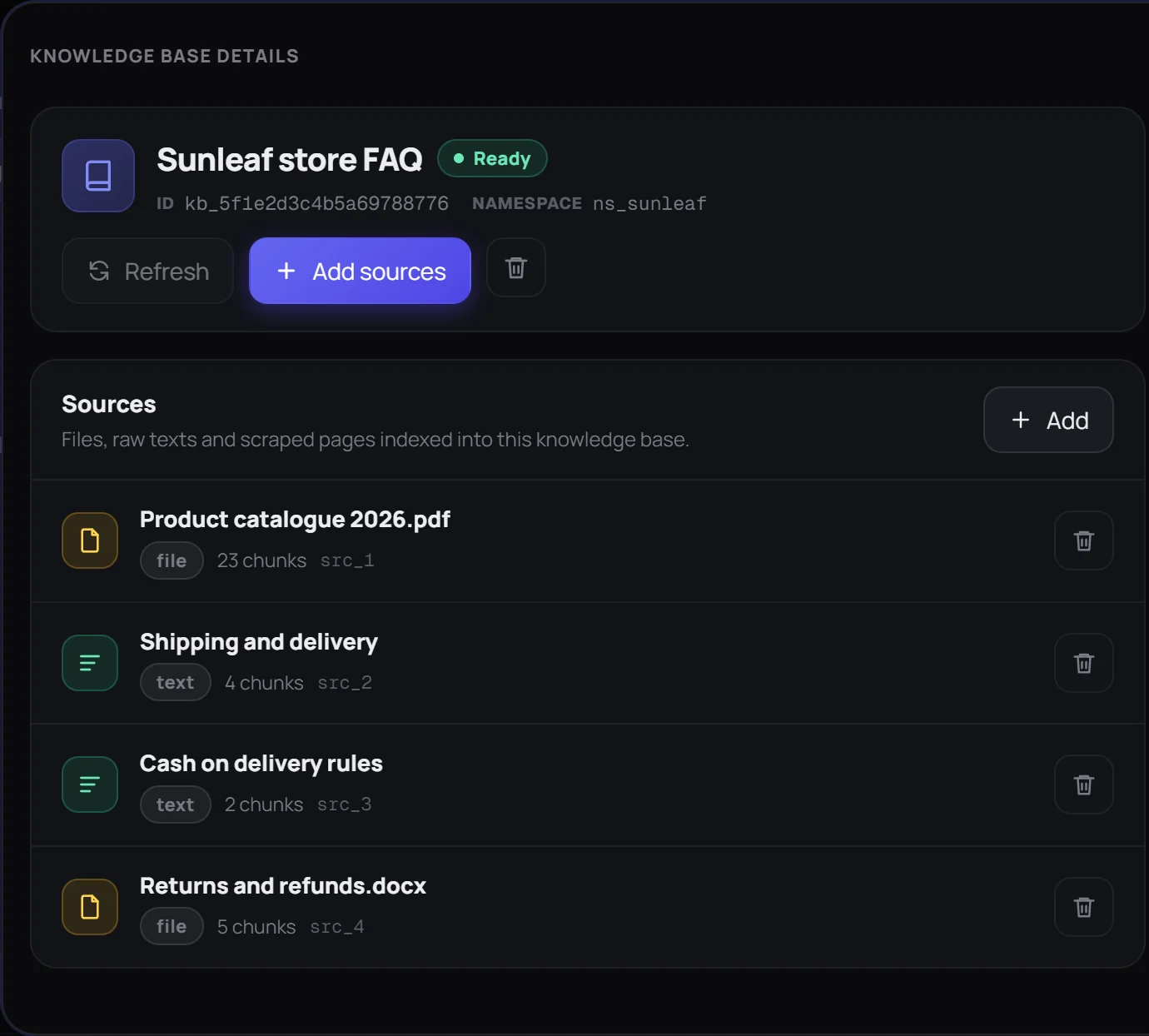
Short, specific sources work better than one giant document. A separate “Cash on delivery rules” text gets found more reliably than a paragraph buried on page 30 of a catalogue.
Step 2: Create the chat agent
Switch the dashboard to Chat, open Chat Agents, and click New chat agent. Three settings matter:
- System prompt. Say who the agent works for, what it helps with, and its rules: reply in the customer’s language, keep it short, never invent prices or dates, and hand over to a person when it doesn’t know.
- Model. Choose an OpenAI GPT or Anthropic Claude model. Both are included, so you don’t need API keys of your own.
- Knowledge Base. Attach the knowledge base from step 1.
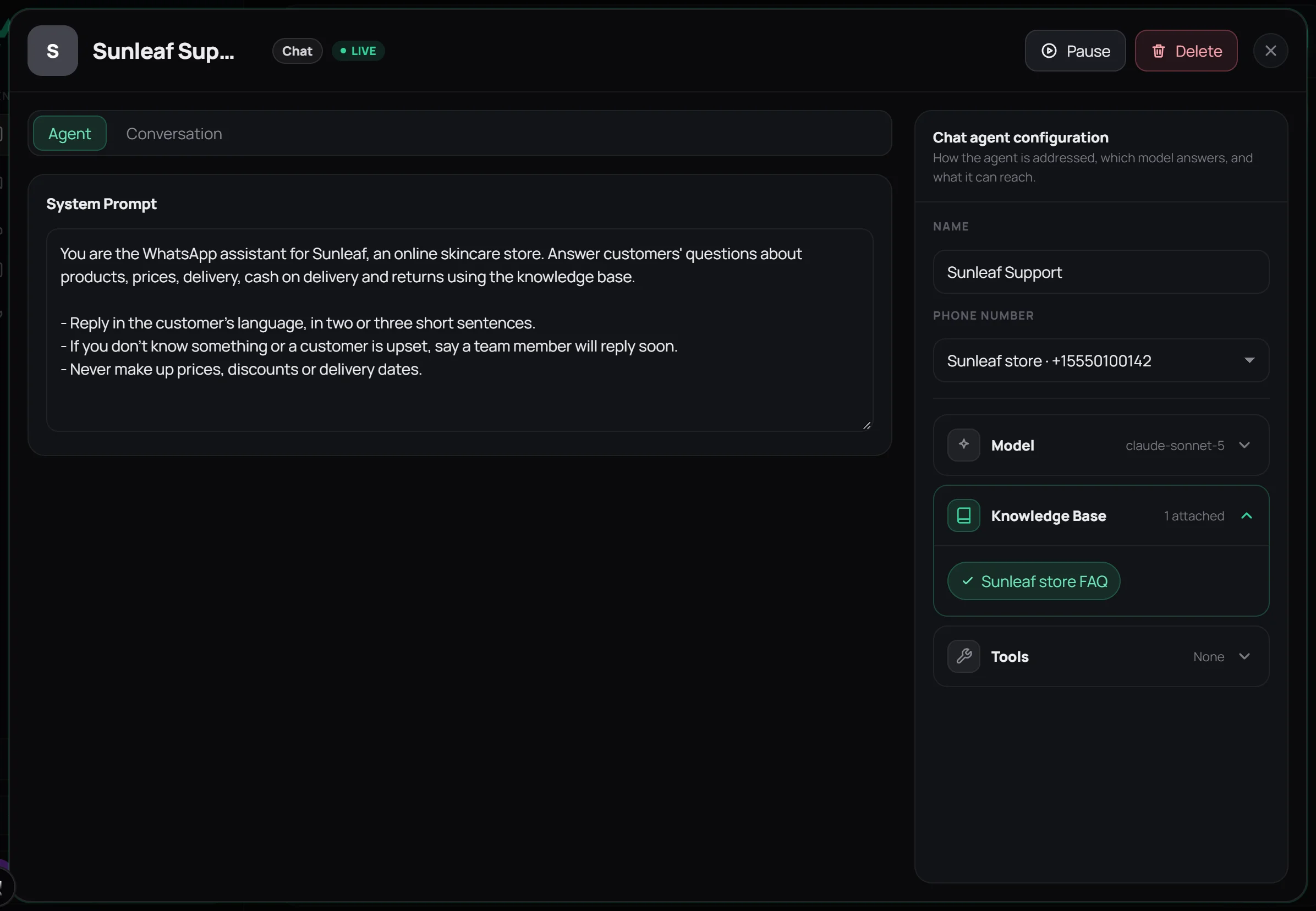
Under Tools you can later give the agent actions, such as an API request that looks up an order in your store. Start without them and add tools once the basics work.
Step 3: Connect your WhatsApp number
Open Phone Numbers and click New Number. Give it a label and click Create, and a QR code appears. On your phone, open WhatsApp, go to Settings › Linked devices on iPhone or ⋮ › Linked devices on Android, tap Link a device, and scan the code. Then pick your chat agent for the number. Once it shows Connected, the agent receives the number’s messages.
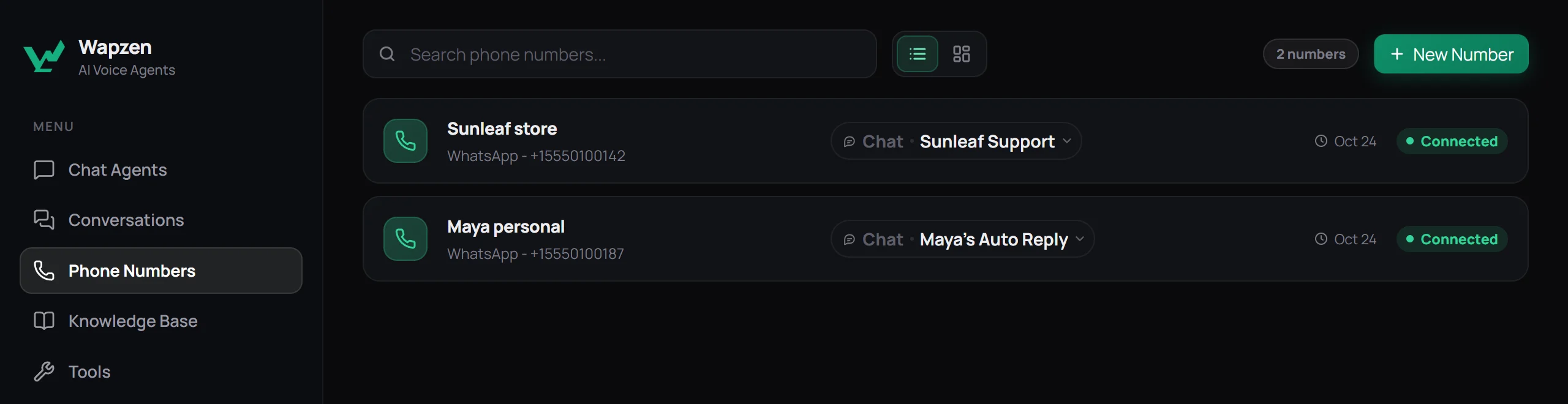
Your phone keeps working as normal. You’ll see the customer’s message and the agent’s reply in the chat, just as you see messages sent from WhatsApp Web.
Step 4: Go live and test it
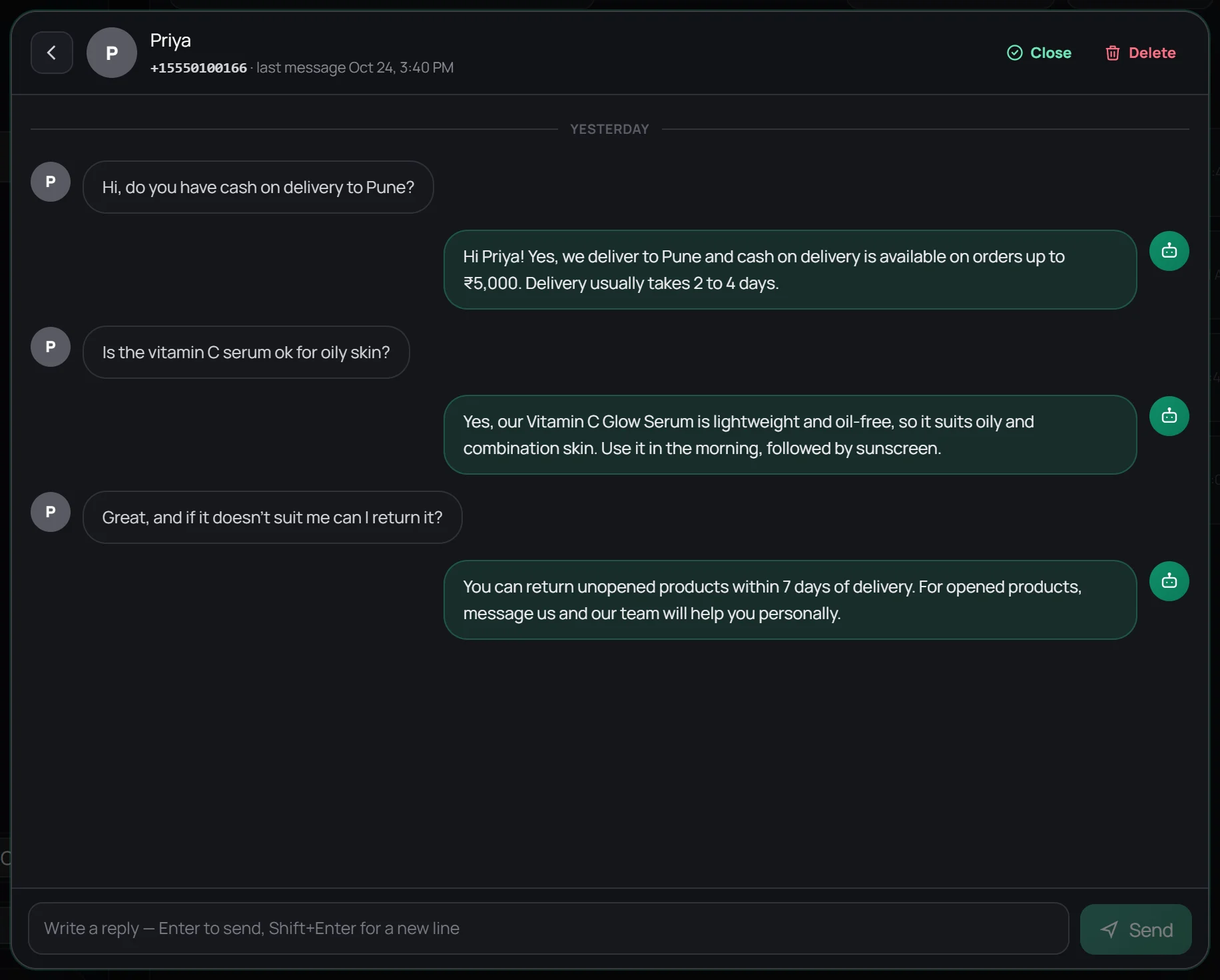
In the agent, click Activate. Then message your number from another phone and ask the questions your customers ask most. Every thread is saved under Conversations, so you can check each answer, and reply yourself from the dashboard when a customer needs a person.
Step 5: Make it better every week
The first version won’t be perfect, and it doesn’t need to be. Once a week, read through Conversations and look for three things:
- Questions it couldn’t answer. Add the answer to the knowledge base as a short text source.
- Answers that were too long or too vague. Tighten the system prompt, for example “answer in two sentences”.
- Moments a person should have stepped in. Add a rule such as “if someone is upset or asks for a refund, say the team will reply soon”.
Want to go further? The same number can have a voice agent that answers WhatsApp calls, and the COD confirmation guide shows how to call buyers to confirm their orders.
When to use the Business API instead
A QR-linked chatbot is the fastest, cheapest way to answer customers on WhatsApp. It isn’t the right tool for everything. Choose the official Business API, through a provider, if you need:
- Broadcasts and campaigns to large lists of opted-in contacts.
- A shared team inbox with several agents, assignment rules, and roles.
- A verified business profile and Meta’s official platform behind your number.
- Very high volume, where your whole business depends on WhatsApp staying connected.
For a side-by-side look at those platforms, read the best WATI alternatives or Wapzen vs AiSensy, and for what Meta charges per message, WhatsApp Business API pricing.
Wapzen is an independent product, not made by Meta or WhatsApp. It links your number as a linked device. WhatsApp restricts numbers that send bulk or unwanted messages, so use the chatbot to answer people who contact you, never to message people who didn’t.
Frequently asked questions
Can I make a WhatsApp chatbot without the Business API?
Yes. Instead of registering your number with Meta's Business Platform, you link it as a device, the way WhatsApp Web works, and software answers the messages it receives. Wapzen does this with an AI agent: you create the agent, scan a QR code, and it starts replying.
Can I use my existing WhatsApp number?
Yes. A regular WhatsApp or WhatsApp Business number works, and you keep using the app on your phone. The chatbot runs as a linked device next to it.
Do I need to know how to code?
No. You write the agent's instructions in plain language, upload your documents to a knowledge base, and scan a QR code. Coding only comes in if you want the agent to call your own systems through an API tool, such as an order lookup.
Can my number get banned?
WhatsApp restricts numbers that send bulk or unwanted messages, or that many people report. An agent that only answers people who message you behaves like a fast, helpful reply, which keeps the risk low. A linked device isn't Meta's official route, though, so no unofficial tool can promise zero risk. If WhatsApp is business-critical at high volume, use the Business API.
How much does a WhatsApp chatbot without the API cost?
Wapzen is currently free, including the AI models, the knowledge base, and the WhatsApp connection. Because there's no Business API, there are no per-message or template fees either.
What should go in the chatbot's knowledge base?
Whatever customers ask about: your price list or catalogue, delivery and payment rules, return policy, opening hours, and a short FAQ. Plain text, PDF, and Word files all work, and you can add more sources whenever the agent can't answer something.