Quick answer
- Why: refused COD parcels (RTO) cost you shipping both ways. A quick confirmation before dispatch weeds out fake and impulse orders.
- How: a Wapzen voice agent calls each buyer on WhatsApp the moment you add the order to a campaign, by hand or through the API, and sends a WhatsApp confirmation message.
- What you get: each order’s status and the full call transcript. Ship the confirmed ones and fix or cancel the rest. It’s free right now.
Why confirm cash on delivery orders?
Every COD order that’s refused at the door comes back to you as a return to origin (RTO): you pay shipping both ways, the stock is stuck in transit, and the courier sees a worse delivery rate. Fake orders, impulse buys, and wrong addresses cause most of them, and a quick check before you ship filters many out.
Stores usually confirm in one of three ways:
| Calls by your team | WhatsApp message with buttons | AI call on WhatsApp | |
|---|---|---|---|
| How it works | Someone on your team rings each buyer | A template message with Confirm and Cancel buttons | An AI agent calls each buyer and talks it through |
| Needs the Business API | No | Yes, plus an approved template | No |
| Handles questions and address changes | Yes | No | Yes, and they’re in the transcript |
| Easy to ignore | No | Yes, it’s one more message | Less, it’s a call |
| Cost per order | Staff time | A template charge per message | Free right now with Wapzen |
This guide sets up the third: an AI voice agent that calls each COD buyer on WhatsApp, confirms the order, and sends them a WhatsApp message with the details. The screenshots come from Wapzen’s dashboard, set up for Sunleaf, a demo skincare store.
How the setup fits together
- A voice agent holds the confirmation script and speaks to the buyer.
- Two tools let it act: one sends a WhatsApp confirmation message, one ends the call politely.
- An outbound campaign uses that agent. Every COD order you add as a lead gets a call at once.
- The Leads and Calls tabs show who confirmed, who didn’t answer, and what everyone said.
One limit to plan around: a lead carries a phone number, name, and email, not the order itself. The agent confirms “the order you placed with us” rather than reading out items and the amount, so call while the order is fresh.
Step 1: Create the COD voice agent
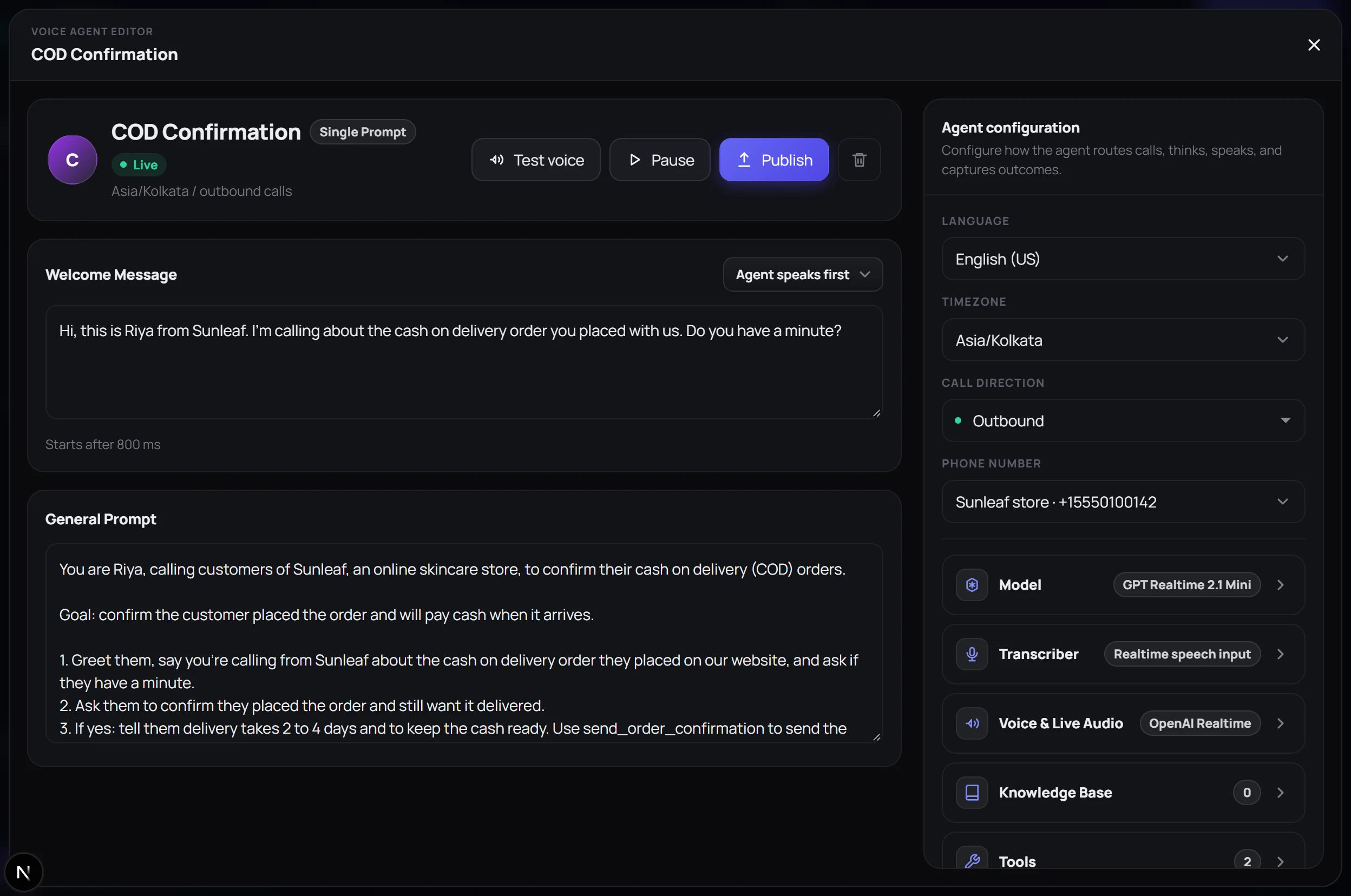
With the dashboard in Voice mode, open Agents, click New Agent, and set the call direction to Outbound. Then fill in two boxes:
- Welcome message, with “Agent speaks first”: the line the buyer hears when they pick up. Name your store in the first sentence so nobody hangs up on an unknown caller.
- General prompt: the script. Here’s the one in the screenshot, ready to adapt:
You are Riya, calling customers of [Store], an online store, to confirm their cash on delivery (COD) orders.

1. Greet them, say you're calling from [Store] about the cash on delivery order they placed on our website, and ask if they have a minute.
2. Ask them to confirm they placed the order and still want it delivered.
3. If yes: say delivery takes [2 to 4 days] and to keep the cash ready. Use send_order_confirmation, then thank them and use end_call.
4. If they want to change the address or delivery time: ask for the new details, repeat them back, and say the team will update the order.
5. If they did not place the order or want to cancel: say you'll cancel it, apologise, and use end_call.

Rules: one or two short sentences per reply. Never ask for card or bank details. If they ask something you don't know, say the team will reply on WhatsApp.
Set the language your buyers speak. Voice agents speak dozens of languages, including Hindi, Bengali, and Tamil. Then click Publish.
Step 2: Give the agent two tools
Open Tools and click Create Tool twice:
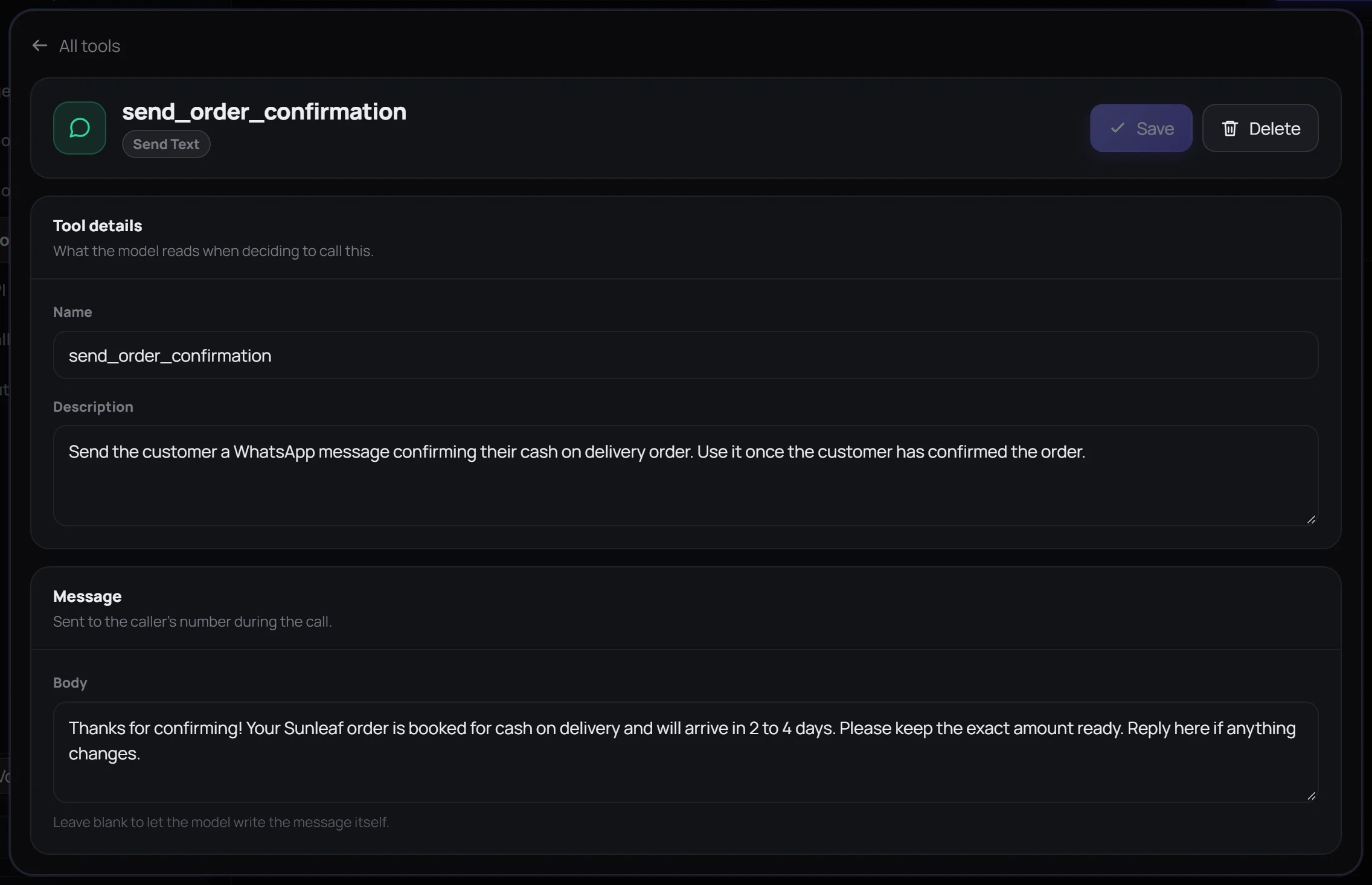
- A Send Text tool named
send_order_confirmation. Its message goes to the person on the call, as a normal WhatsApp message, so the buyer has the confirmation in writing. Write the text yourself, or leave it blank and the agent writes it. - An End Call tool, so the agent hangs up after its goodbye instead of waiting for the buyer to.
Then go back to the agent and attach both under Tools. The tool names in the script must match.
Step 3: Connect your store’s WhatsApp number
Calls go out from your own WhatsApp number. Open Phone Numbers, click New Number, and scan the QR code from WhatsApp’s Linked devices screen on your phone. Then choose that number in the agent’s Phone number setting. The chatbot guide shows this step with screenshots.
Use the number your buyers already know, the one on your website or order emails. Buyers are more likely to pick up when they recognise the number calling them.
Step 4: Create the campaign and add orders
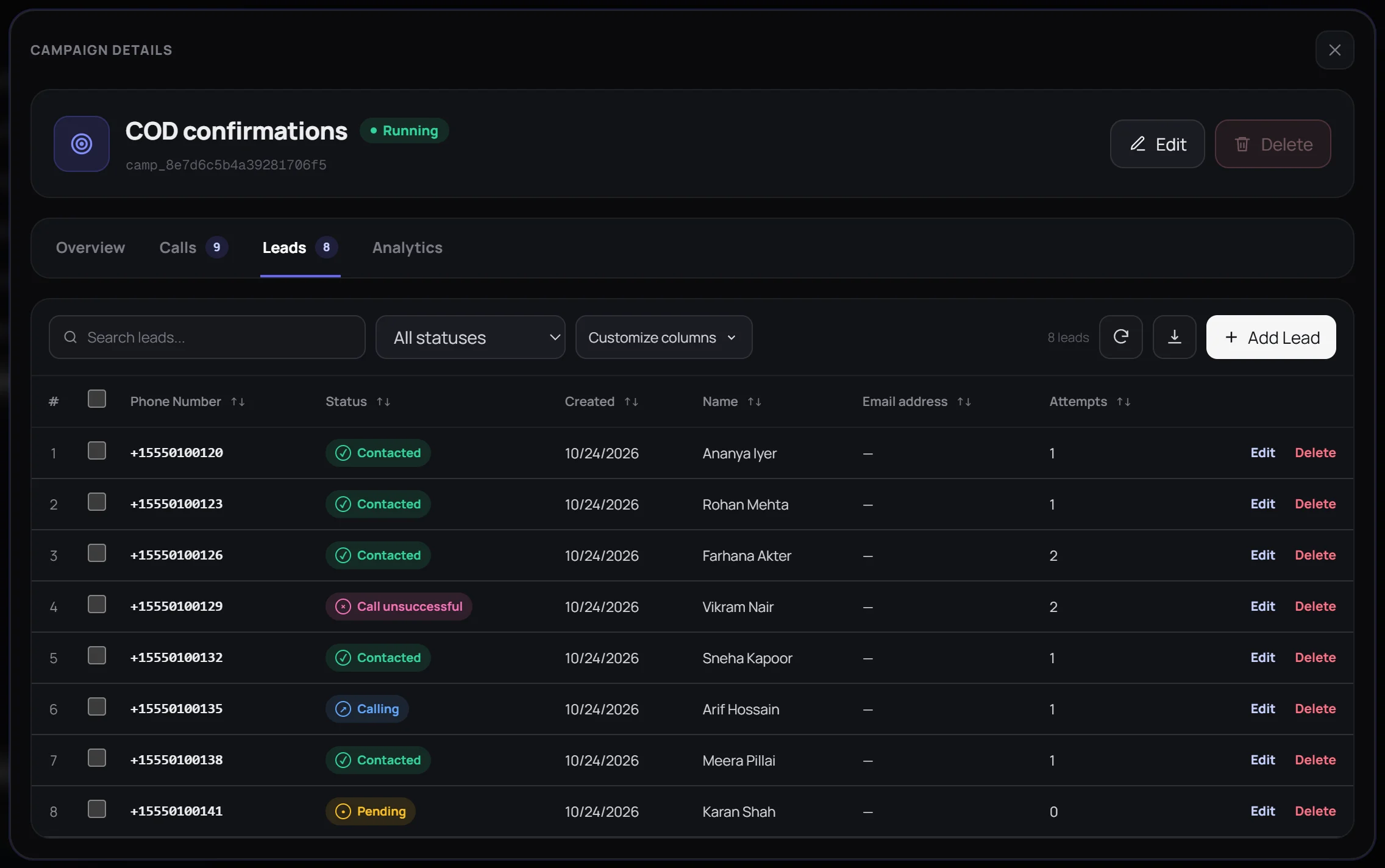
Open Outbound, click New campaign, name it, and pick the COD agent. When you’re ready, use Edit to set its status to Running. Then open Leads › Add Lead, enter the buyer’s number in international format with their name, and save. Adding a lead places the call straight away. Add your own number first to hear the call yourself.
Add orders automatically
Typing in every order works for a handful a day. For more, let your store add them. Create a key under API Keys, then have your automation tool (Shopify Flow, Zapier, Make, or n8n) send one request for each new COD order:
POST /v1/outbound-campaigns/{campaign_id}/leads
Authorization: Bearer YOUR_API_KEY
Content-Type: application/json

{ "phone_number": "+91XXXXXXXXXX", "first_name": "Ananya", "last_name": "Iyer" }
Filter the trigger to cash on delivery orders only, so prepaid buyers don’t get a call. The response tells you whether the call went out, and if not, why.
Step 5: Read the answers and update your orders
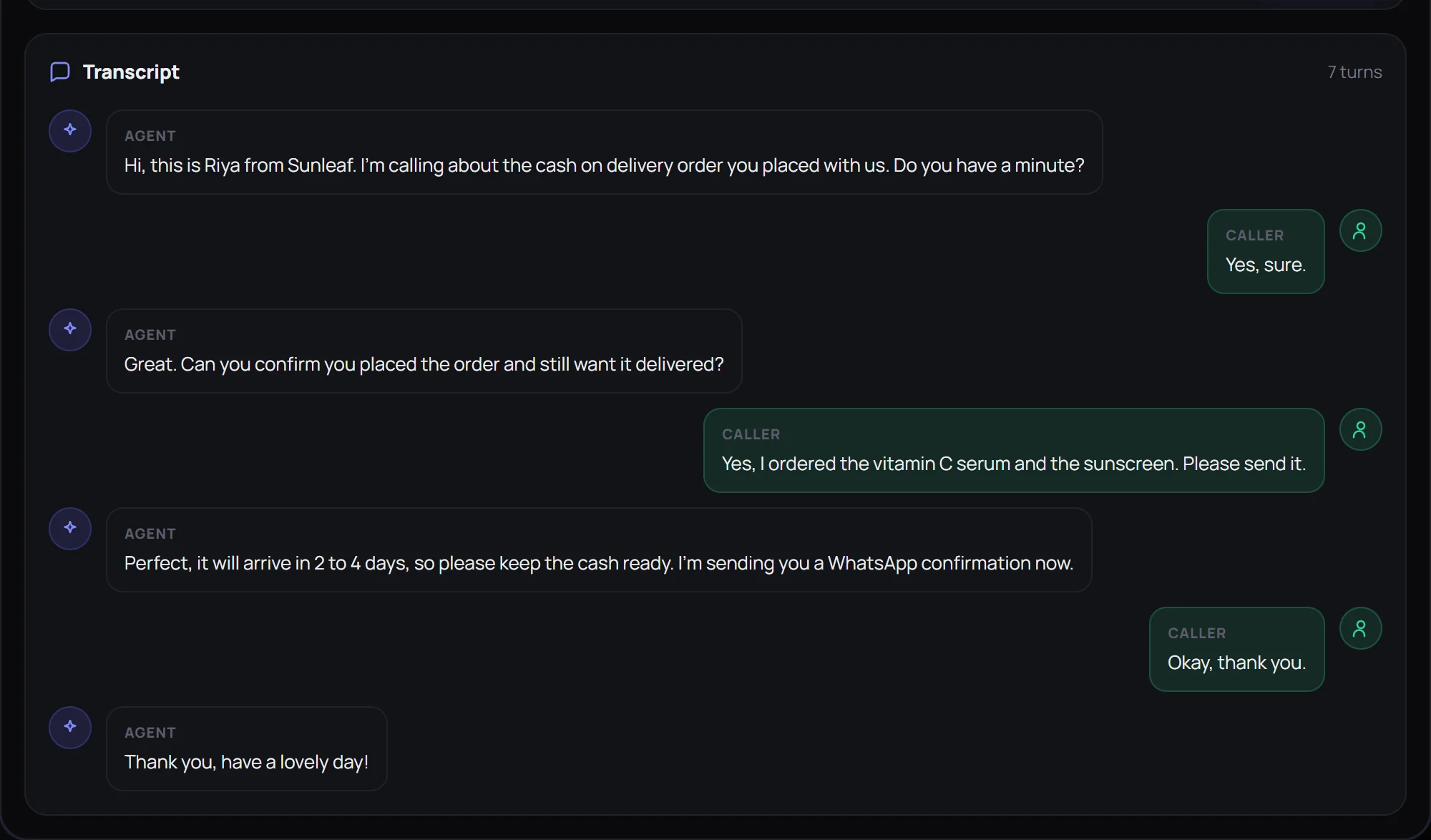
Open a call from the campaign’s Calls tab, or from Calls in the sidebar, to read the full transcript. Then act on it in your store:
- Confirmed: ship it. The buyer already has the WhatsApp confirmation.
- Cancelled or “I didn’t order this”: cancel before it ships.
- New address or delivery time: it’s in the transcript; update the order.
- Call unsuccessful: Wapzen doesn’t redial on its own yet. Message the buyer on WhatsApp, or remove the lead and add it again later for a second call. Hold the parcel until you hear back.
The download button in the Leads tab exports every lead and status as a CSV, if you’d rather reconcile in a spreadsheet.
Tips for COD calls that get answered
- Call within minutes of the order. The buyer still has their phone in hand and remembers what they bought.
- Hold night orders until morning. Calls go out as soon as a lead is added, so queue orders placed late at night in your automation.
- Keep it under a minute. Confirm, mention payment, send the message, say goodbye. Long scripts get hang-ups.
- Never ask for payment details. Say so in the script. Buyers are rightly wary of calls asking for card numbers.
- Only call people who just ordered. They expect to hear from you. Calling people who didn’t ask breaks WhatsApp’s terms and gets numbers restricted.
Buyers can only be reached if their number is on WhatsApp. Those who aren’t show up as Call unsuccessful, so keep a fallback for them, such as an SMS or a call from your team.
Frequently asked questions
How do I automate COD order confirmation?
Add each cash on delivery order to an outbound calling campaign in Wapzen, either by hand or automatically through the API. A voice agent calls the buyer on WhatsApp straight away, asks them to confirm, sends a WhatsApp confirmation message, and saves the transcript, so you only act on cancellations and changes.
Can I confirm COD orders on WhatsApp without the Business API?
Yes. Confirmation messages with buttons need the Business API and an approved template, but a WhatsApp call doesn't. Wapzen calls from your own number, linked by QR code, so there's no API account, template, or per-message fee.
Does it work with Shopify or WooCommerce?
Not as a store app yet. Connect them through Wapzen's API with an automation tool such as Shopify Flow, Zapier, Make, or n8n: when a COD order is placed, the automation adds the buyer as a lead, and the call goes out.
What happens if the buyer doesn't answer?
The lead is marked Call unsuccessful. Wapzen doesn't redial on its own yet, so send that buyer a WhatsApp message, or remove the lead and add it again later to place another call.
Can the AI read out the order items and amount?
Not yet. A lead carries the buyer's phone number, name, and email, not the order, so the agent confirms the order they placed without listing it. Calling within minutes of the order helps, because buyers remember what they just bought.
How much do COD confirmation calls cost?
Wapzen is currently free, and WhatsApp calls from your linked number have no per-minute charge. Compare that with staff time for manual calls, or a template charge on every confirmation message sent through the Business API.